Delete a User Group
When you delete a User Group, all the users currently in that group are automatically removed (the user accounts are not deleted).
Note: This feature is available for Organization Administrators.
The platform allows you to delete a User Group from two different places:
-
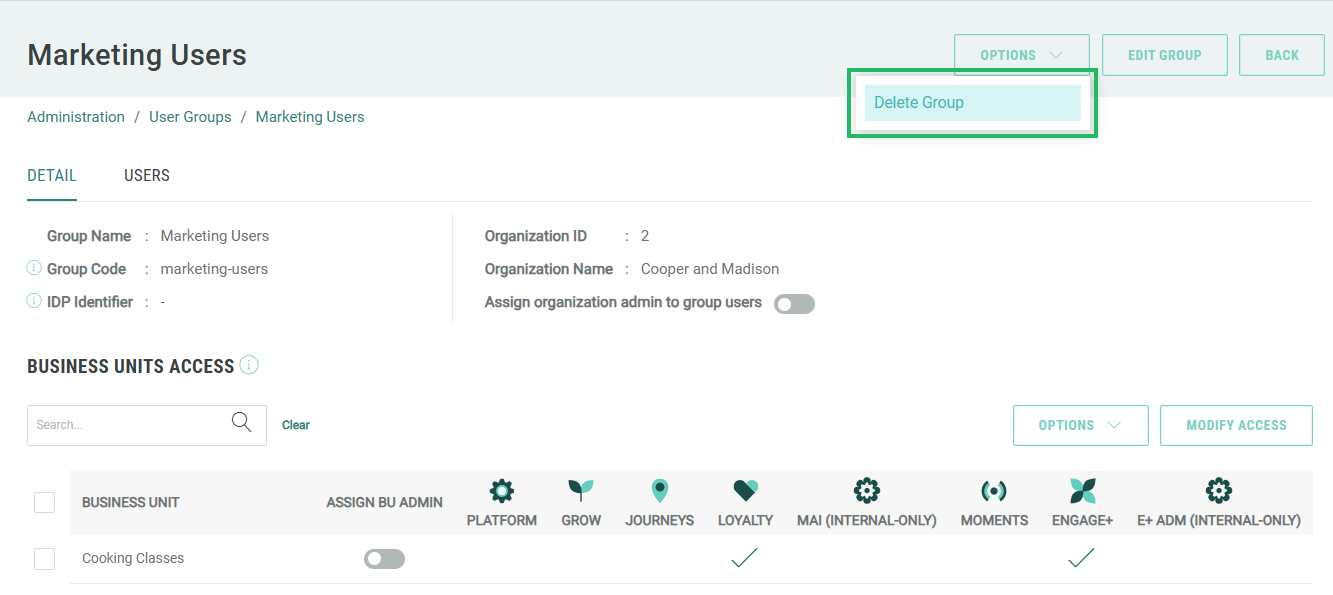
From the User Group Details screen in the Administration environment, delete the selected User Group.
-
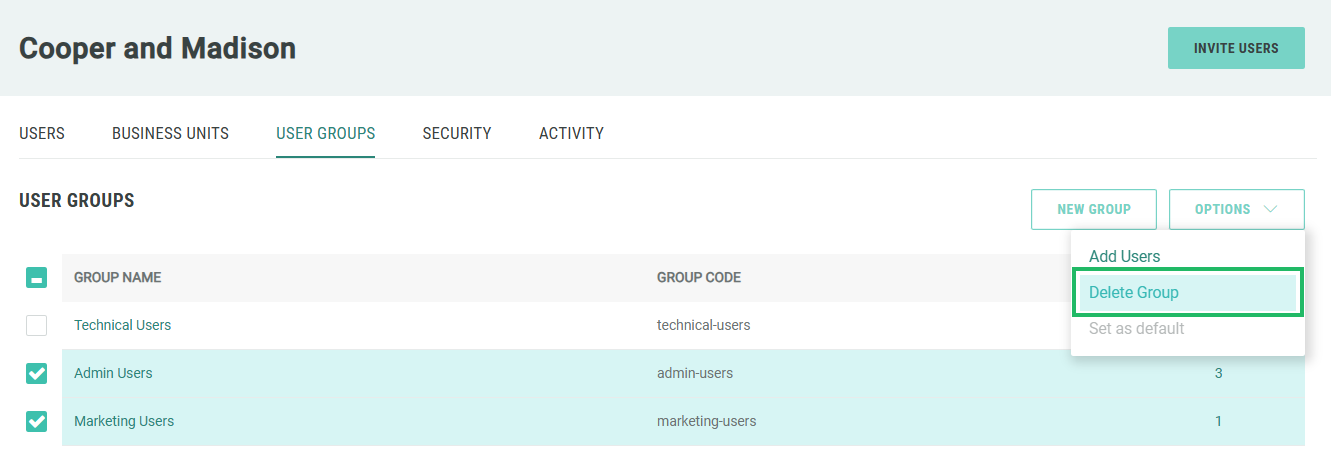
From the User Groups tab in the Administration environment, delete one or more User Groups.
User Group Details Screen
To delete a User Group:
-
Log into the Zeta Login User Workspace.
-
Click your profile icon in the top-right corner of the screen. The Profile Info pop-up window is displayed.
-
Within the Profile Info pop-up window, click Zeta Login Administration. This will take you to the Zeta Login Administration environment, with the Users tab selected by default.
-
Select the User Groups tab. This tab displays all currently defined User Groups.
-
Click the desired User Group. The User Group Details screen is displayed with the Detail tab selected by default.
-
Select Options > Delete Group. A confirmation dialog box is displayed; click Yes.
-
Click Back to return to the User Groups tab.
User Groups Tab
To delete one or more User Groups:
-
Log into the Zeta Login User Workspace.
-
Click your profile icon in the top-right corner of the screen. The Profile Info pop-up window is displayed.
-
Within the Profile Info pop-up window, click Zeta Login Administration. This will take you to the Zeta Login Administration environment, with the Users tab selected by default.
-
Select the User Groups tab. This tab displays all currently defined User Groups.
-
Place check marks next to one or more User Groups.
-
Select Options > Delete Group. A confirmation dialog box is displayed; click Yes.